

The Ultimate Guide to Markdown Writing: From Beginner to Master
Want to write efficiently? Markdown is your best choice. This article takes you from zero to mastering Markdown syntax and explores the benefits of using an online Markdown editor. No installation needed, start writing instantly.
In the digital writing era, are you tired of the tedious formatting of Word documents? Are you struggling with format compatibility when publishing across different platforms?
If you crave a writing method that focuses on content, offers clean and beautiful formatting, and is universally compatible, then Markdown is your absolute best choice. Pairing it with a powerful Online Markdown Editor can double your writing efficiency.
What is Markdown?
Markdown is a lightweight markup language created by John Gruber in 2004. Its goal (goal) was to enable people “to write using an easy-to-read, easy-to-write plain text format, and then convert it to structurally valid XHTML (or HTML).”
Simply put, Markdown allows you to achieve formatting effects like headers, bold text, and lists just by typing simple symbols (like #, *, -).
Why Choose Markdown?
- Focus on Content: Format as you type without your hands leaving the keyboard, avoiding the frequent switching between mouse and keyboard.
- Universal Format: Perfectly supported by mainstream tech communities (GitHub, Stack Overflow), blog platforms (Hexo, Hugo, Jekyll), and even note-taking apps (Notion, Obsidian).
- Easy Migration: Markdown files are essentially plain text (
.md), so they can be opened with any text editor without worrying about file corruption or compatibility issues.
Markdown Basic Syntax Cheat Sheet
Getting started with Markdown is incredibly simple. You only need to master a few commonly used symbols:
1. Headers
Use the # symbol for headers. The number of # corresponds to the header level.
# Heading Level 1 (H1)

## Heading Level 2 (H2)

### Heading Level 3 (H3)
2. Text Styling
- Bold: Wrap text with two asterisks
**, e.g.,**Important**. - Italic: Wrap text with one asterisk
*, e.g.,*Italic Text*. Strikethrough: Wrap text with two tildes~~, e.g.,~~Deprecated~~.
3. Lists
- Unordered List: Use
-,+, or*followed by a space. - Ordered List: Use numbers followed by a period, e.g.,
1.,2..
4. Links and Images
- Link:
[Link Text](URL), e.g.,[Worker's Tools](/en/tool/markdown-editor). - Image:
, similar to links but preceded by an exclamation mark.
5. Blockquotes and Code
- Blockquote: Use the
>symbol. - Inline Code: Wrap with backticks `, e.g., `console.log()`.
- Code Block: Wrap with three backticks ``` and specify the language.
Advanced Tips: Professionalize Your Documents
Once you’ve mastered the basics, these advanced features will make your technical documents or blog posts more expressive.
Tables
While Markdown tables aren’t as powerful as Excel, they are sufficient for daily needs:
| Feature      | Description     | Rating     |
| ------------ | --------------- | ---------- |
| Live Preview | WYSIWYG         | ⭐⭐⭐⭐⭐ |
| HTML Export  | Easy Publishing | ⭐⭐⭐⭐   |
Task Lists
Perfect for To-Do lists:
- Finish Markdown basics
- Try writing an article with the online editor
Why Do You Need an Online Markdown Editor?
While local editors (like Typora, VS Code) are powerful, an Online Markdown Editor offers irreplaceable advantages in certain scenarios:
1. Accessed Anytime, Anywhere
No need to download and install large software. Whether you are on a work computer, a home laptop, or a borrowed device, just open your browser and start writing.
2. Real-time Preview, What You See Is What You Get
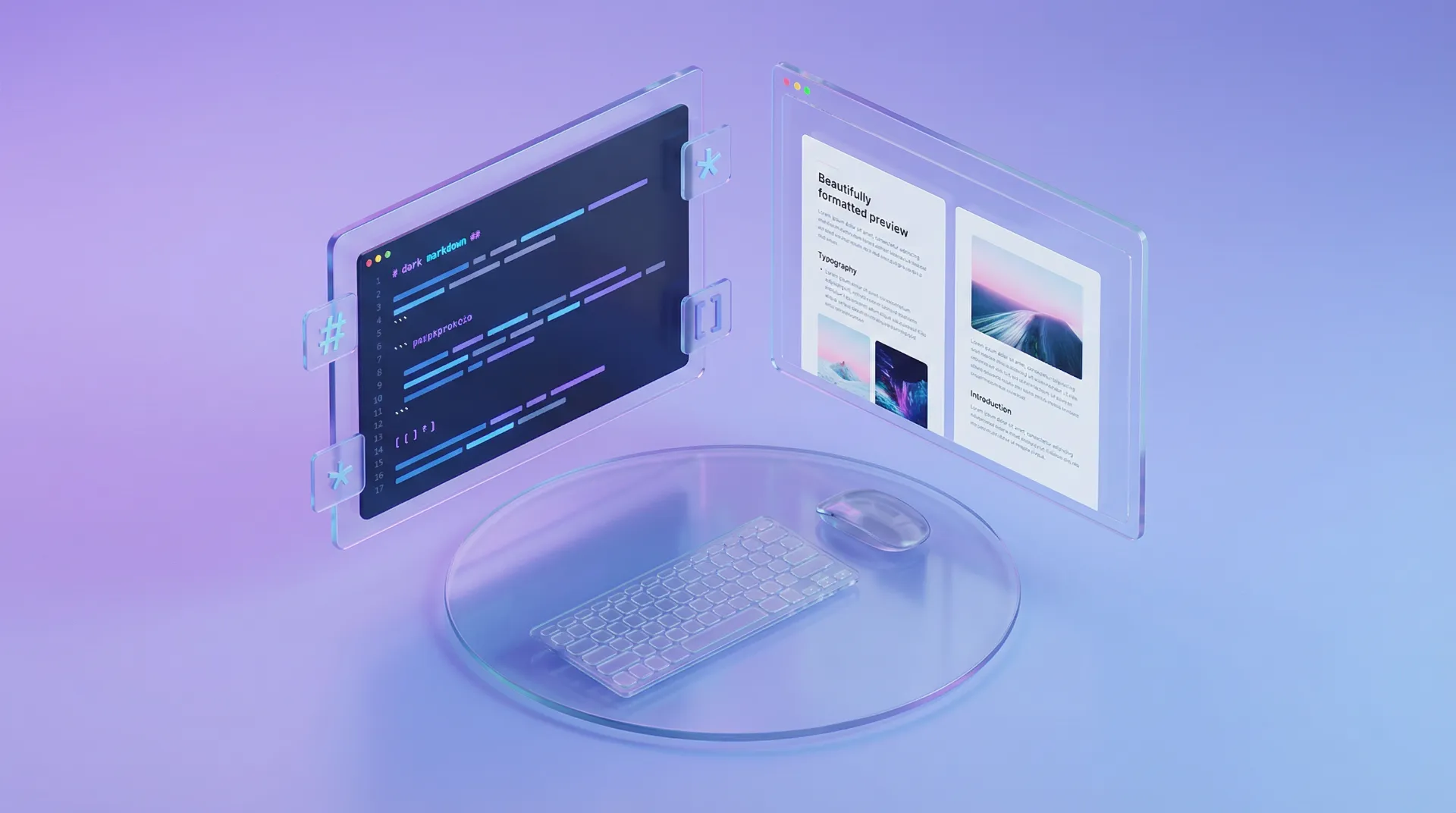
Our Online Markdown Editor provides a split-screen view. Enter Markdown source code on the left, and see the beautifully rendered HTML page on the right in real-time. This instant feedback helps you better control the structure and visual effect of your article.
3. Fast Export and Conversion
After writing, you might need to publish it to a CMS that doesn’t support Markdown or send it to a colleague. Online editors often support one-click HTML export or even PDF. Tip: After exporting HTML, you can use our HTML Formatter to beautify the code, or use the Text Diff Tool to compare changes.
4. Integrated Workflow
During writing, you might need to count words to control length or process code snippets. Online editors often seamlessly integrate with tools like Word Counter and Code Formatters, building a complete workflow.
Conclusion
Markdown is not just a tool; it’s a writing philosophy that advocates for “simplicity” and “efficiency.” It liberates you from complex formatting tasks, allowing you to return to the essence of writing—the expression of ideas.
Open the Online Markdown Editor now and start your immersive writing journey! Whether for technical documentation, study notes, or blog posts, it will be your most capable assistant.